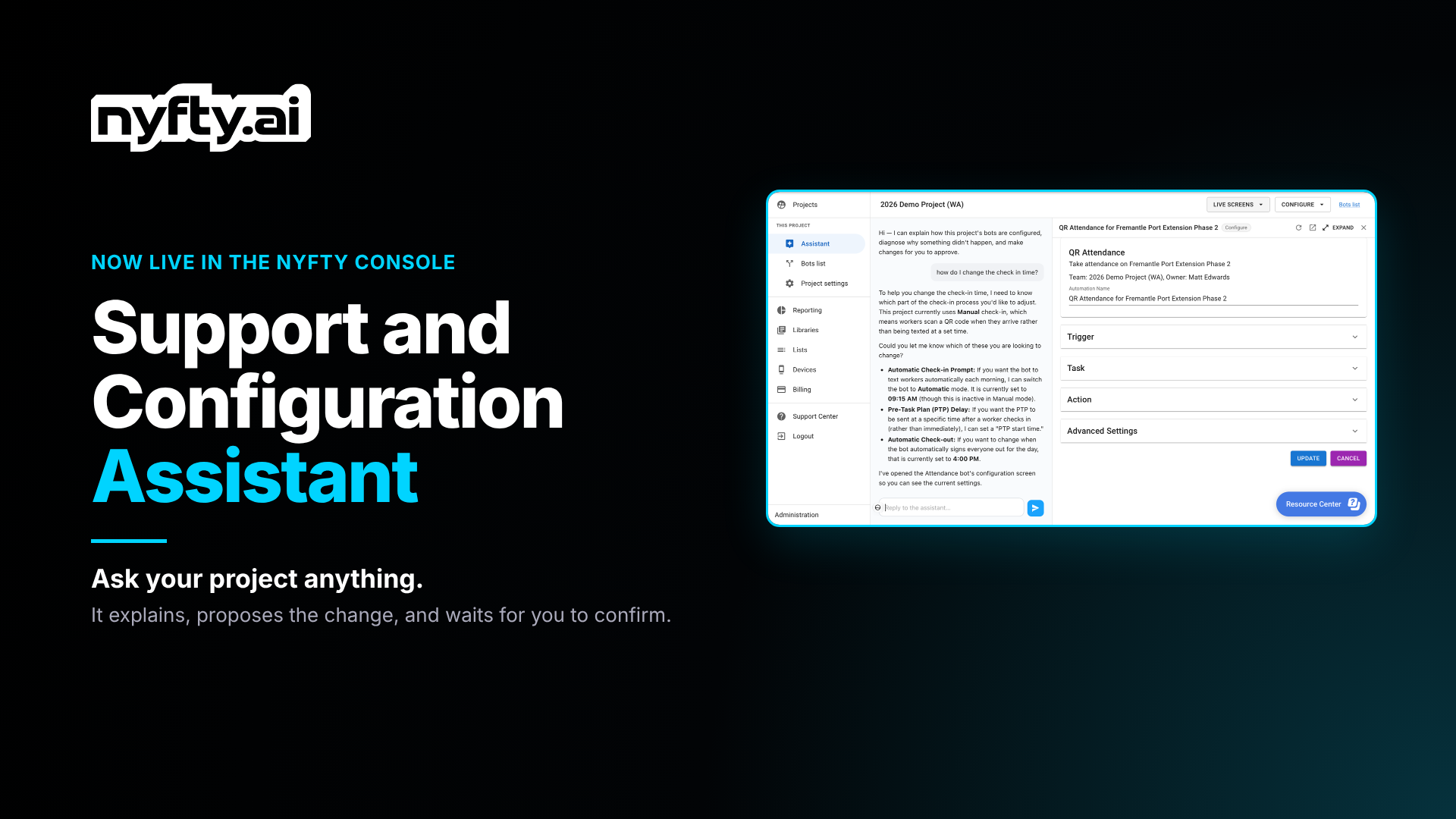
New in the Console: the Support and Configuration Assistant
Every Nyfty project now opens on an assistant that explains how your agents are set up, works out why something didn’t happen, and proposes changes for you to confirm.
Let’s be honest. Nobody opens bot settings for fun. You open them because something didn’t happen. A worker didn’t get their PTP. The attendance text went out at the wrong time. Someone new on the project team needs orientation switched on and has no idea where that lives.
From today, you can just ask.
What It Is
The Support and Configuration Assistant is live in the Nyfty console now. Open a project and it’s the first thing you see. It knows how that project’s agents are set up, so it answers questions about your project, not generic ones.
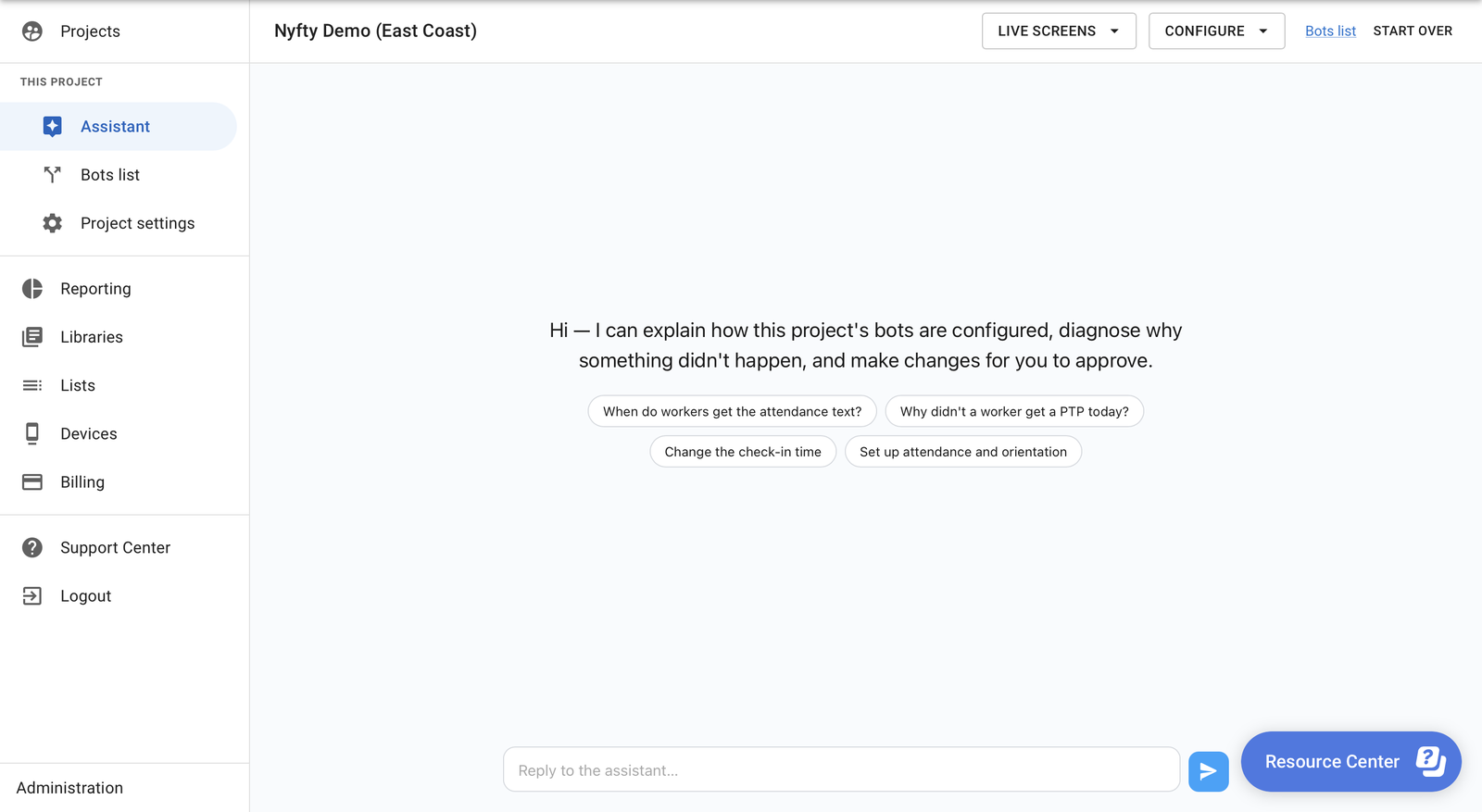
Every project now opens on the assistant. Type a question, or tap one of the suggestions.
Ask It a Support Question
Here’s a real one: “how do I change the check in time?”
The assistant looks at the project first. It sees this one uses manual QR check-in, so workers scan a code when they arrive instead of getting a text at a set time. Then it lays out the three things “check-in time” could mean on this project (the automatic check-in prompt, the PTP delay, and automatic check-out), with the current setting for each. And it opens the Attendance bot’s settings beside the chat, so you can see them for yourself.
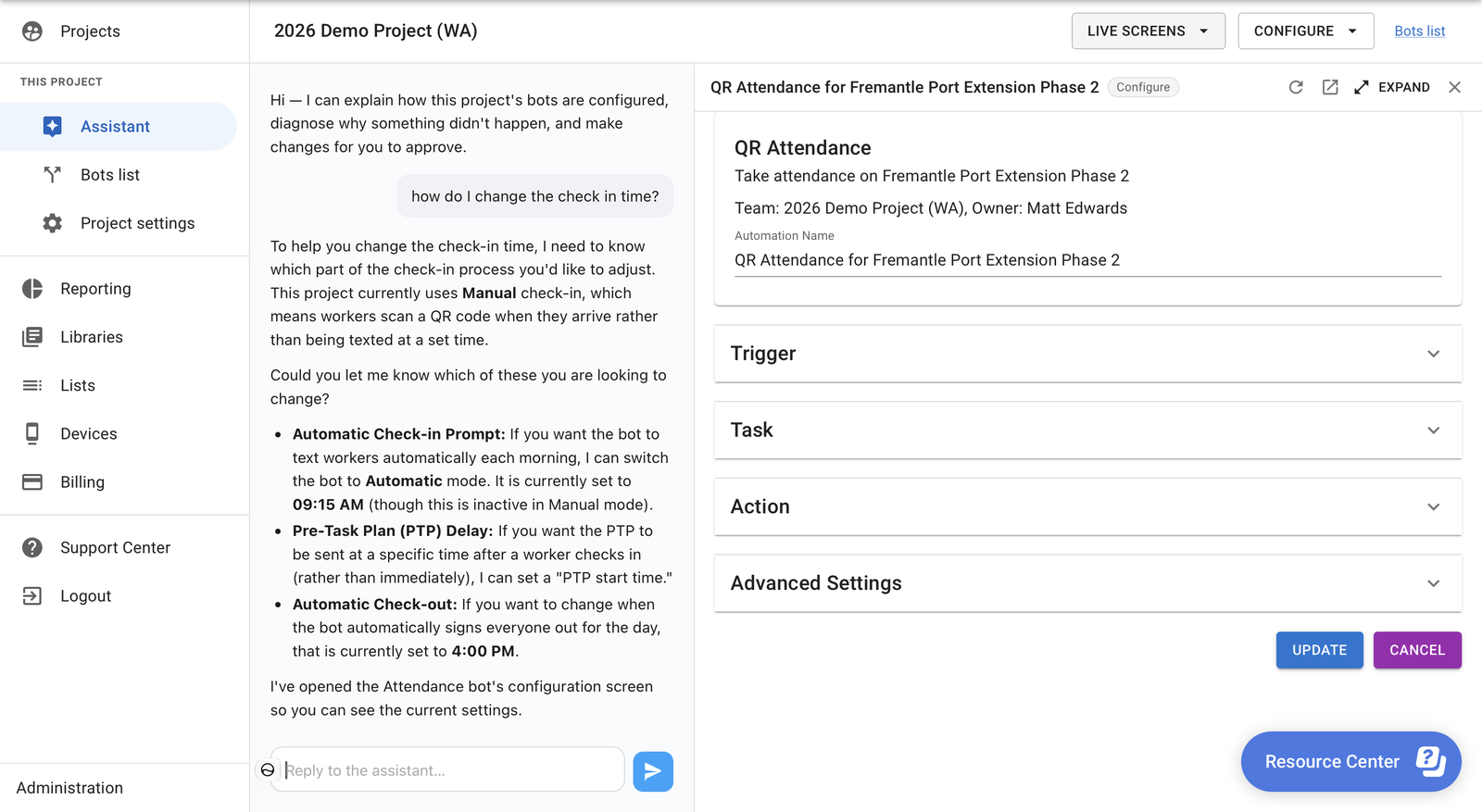
The answer is about this project’s settings, and the right screen opens beside the chat.
“Why didn’t…” questions work the same way. Ask why a worker didn’t get a PTP today, and it works through how the agents are set up to find the cause. No email to us, no waiting for a reply.
Start a New Project by Describing It
Tell it what you need on site. Ask for attendance and it comes back with three quick questions on a card:
- How do you want to track your workforce? Check in every worker by name, or text foremen for a headcount.
- Where should the data go in Procore? The Manpower Log or the Daily Construction Report.
- Do you want to track check-out, or just check-in?
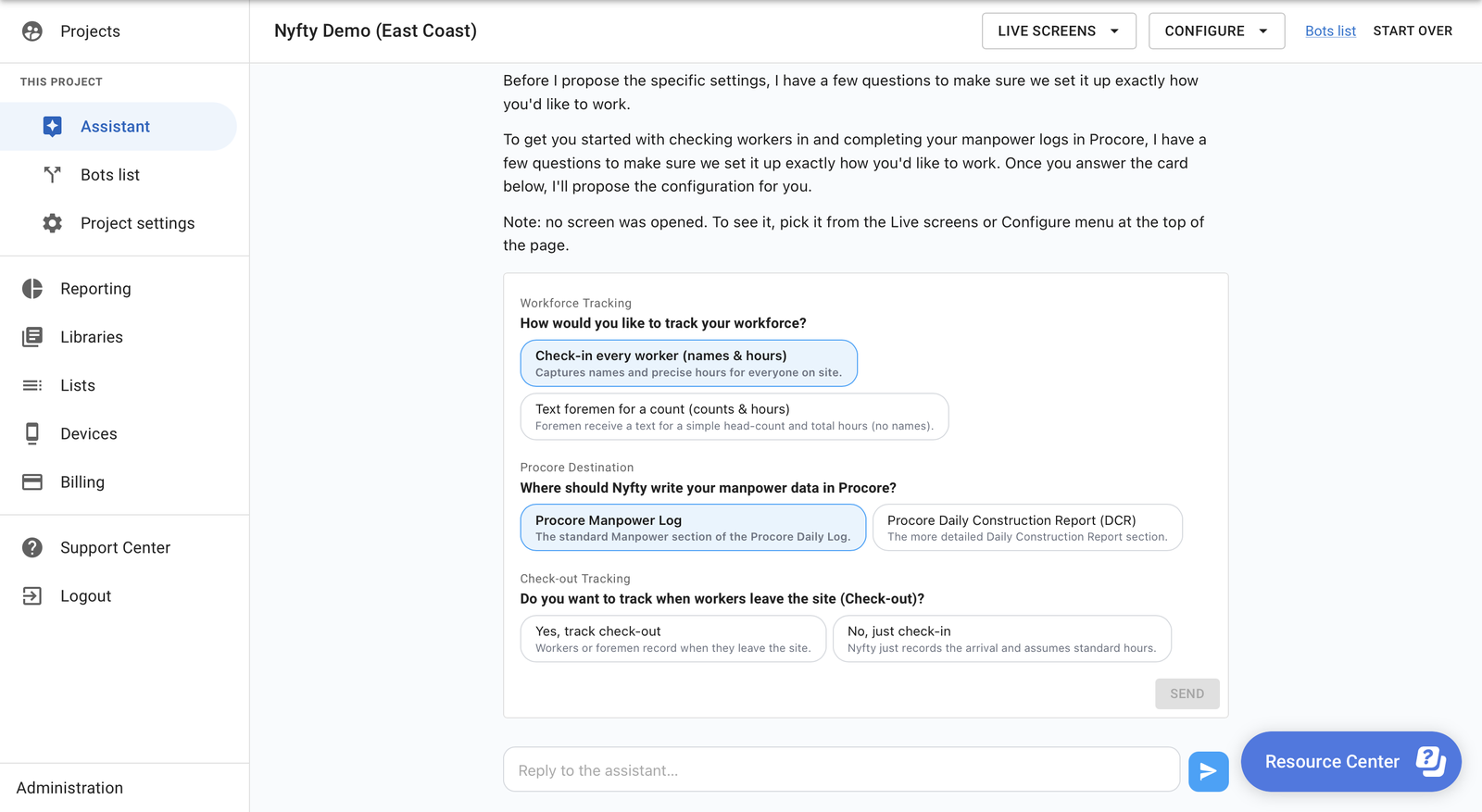
Pick your answers, hit Send, and it proposes the whole setup.
It Proposes. You Confirm.
Every change arrives as a proposal card in the chat. It tells you what it’s about to set up and why. Open View Details to see every setting it will change, then Cancel or Confirm. Nothing changes until someone confirms it.
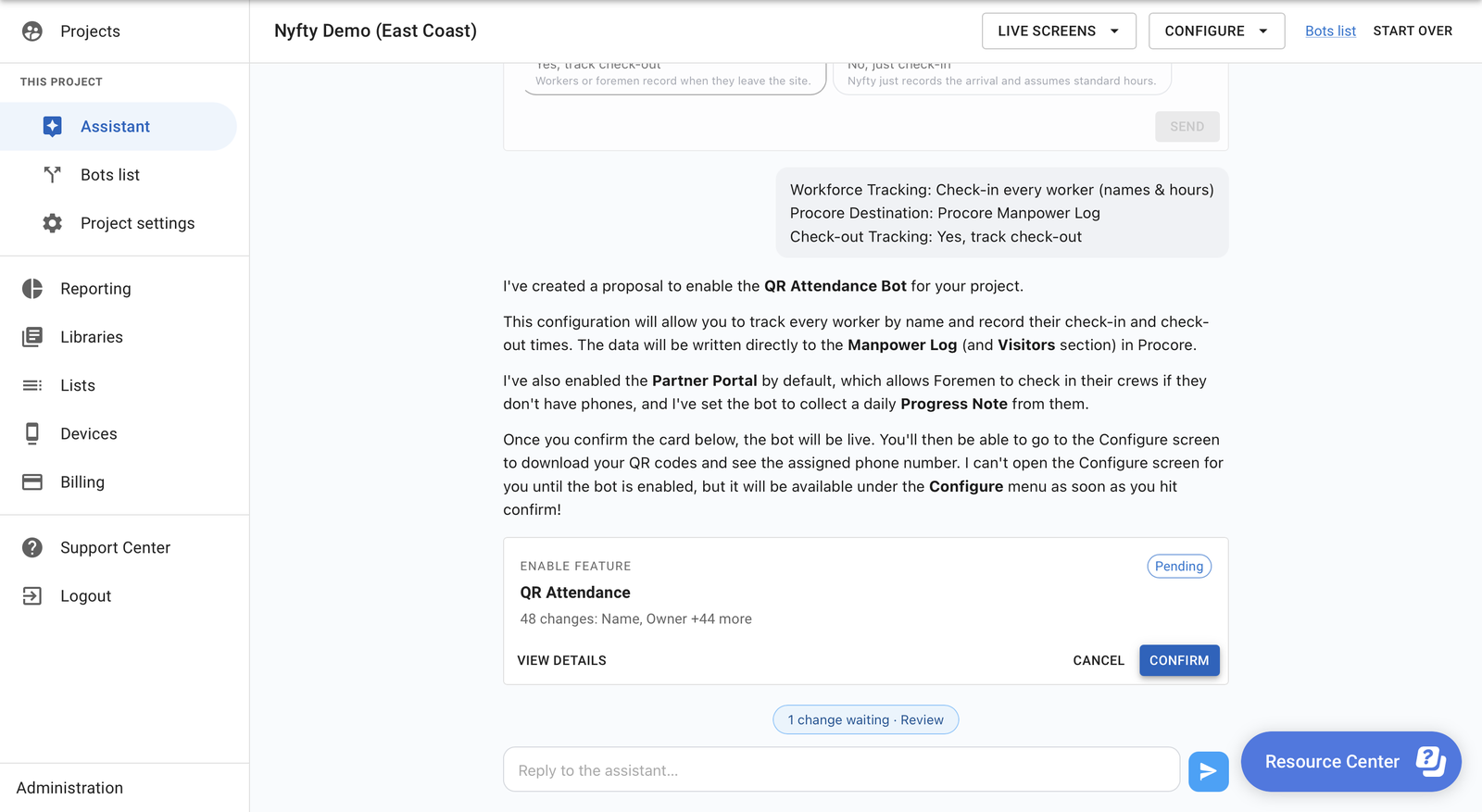
The proposal sits in the chat. Nothing goes live until you hit Confirm.
Already Know Your Way Around? You Lose Nothing
Live Screens and Configure sit at the top of every project. The Bots list is one click away, and every setting is where it always was. Use the assistant when it’s quicker, and skip it when it isn’t.
For Admins: Check Who Can Change Setup
Changes are now easy to make, so more of your project team will make them. That’s the point. But if there’s someone who shouldn’t change configuration, make them a Viewer:
- Open the project and go to Project settings.
- Under Members, find the person and click Change Role.
- Pick Viewer.
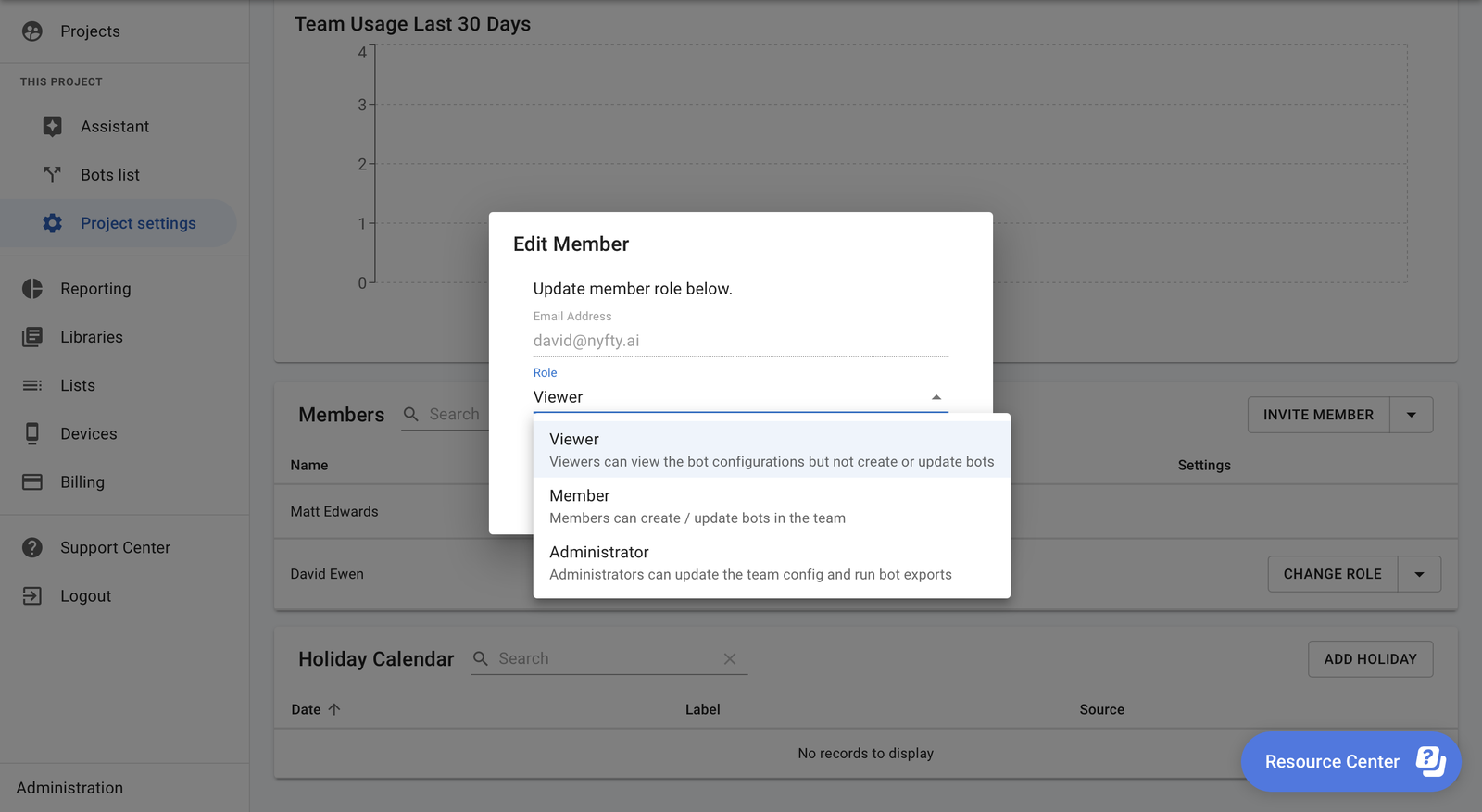
Viewers can still see how every bot is configured. They just can’t create or update bots. Members can create and update bots. Administrators can also update the team config and run bot exports.
Try It
Already a customer? Log in at console.nyfty.ai and open any project.
New to Nyfty? Start free at console.nyfty.ai, connect Procore or Autodesk, and tell the assistant what you need. No setup call needed, though we’re happy to do one.
At Groundbreak this week? We’re at booth 2103 in Orlando on Wednesday 21 and Thursday 22 October. Come and ask it something, and grab some socks and a hat while you’re there.